Small experiments in playful learning
This is where I try out interaction ideas before they earn a place in a course. Each one is built from scratch, in my own design, and has to work with a keyboard and with motion turned off.
Pick an experiment
Finish one to earn its gold star.
Orbit Stickers: a little about me
The rest of this site is about my work. This part is about me. Peel a sticker off the orbit and stick it on my laptop lid to learn something new. Drag it with a mouse or finger, or just tap it. Keyboard users can Tab to a sticker and press Enter.
Every good laptop tells you about the person who owns it.
Why it’s in my portfolio
It’s a toy, but the same pattern powers real learning interactions: drag-to-sort knowledge checks, “build your toolkit” reflections, or a badge collection that fills up as a learner finishes each module.
Accessible by design
Every sticker is a real button with a spoken label, and tapping does the same thing as dragging. The motion pauses on request, slows when you hover, and stays still for anyone who has reduced motion turned on.
How it’s built
About 150 lines of plain JavaScript. Each sticker follows a tilted elliptical orbit, and its size and stacking change with its position, so stickers seem to pass behind the badge. It doesn’t need a 3D engine.
Pulse 3D laptop explorer
Turn the laptop to find the pulsing hotspots. Each one explains a part and asks one quick troubleshooting question. You can also pick parts from the list, and the laptop turns to show you where each one is.
Drag to turn it. Some parts are on the sides and the bottom.
Seven parts, seven quick checks
Pick a gold hotspot on the laptop, or choose a part from the list above. Explored parts turn green.
See the xAPI statement
No statements yet. Open a part to see what an LRS would receive.
Shown here to demonstrate tracking. Nothing is sent anywhere.
The learning design
Exploring comes first, then a single scenario question tied to that part. Each question asks what you would check first, which is how real troubleshooting starts.
Tracked like a real course
Each interaction produces an xAPI statement: experienced when a part opens, answered with the result, and completed once every part is explored. Open the panel to watch them as you go.
How it’s built
The laptop is about 20 flat panels arranged in 3D with CSS. It doesn’t need WebGL or a model file, so it loads instantly. The hotspots are real buttons, and every part can also be reached from the list.
3D project gallery
My featured work, arranged on a ring you can spin. Drag it, use the arrows, or jump straight to a project by name. The card in front opens the full project.
Why a ring?
A grid shows everything at once. A ring shows one thing at a time, with the rest waiting just out of focus. That suits a short, curated set where each project deserves a moment.
Never the only way in
The named buttons below the ring reach every project directly, and only the card in front can be tabbed to. My regular Projects page stays a plain, scannable grid.
How it’s built
Eight cards, each turned 45 degrees and pushed out from a shared center. Spinning the ring is a single rotation, and the cards toward the back fade so the front one stands out.
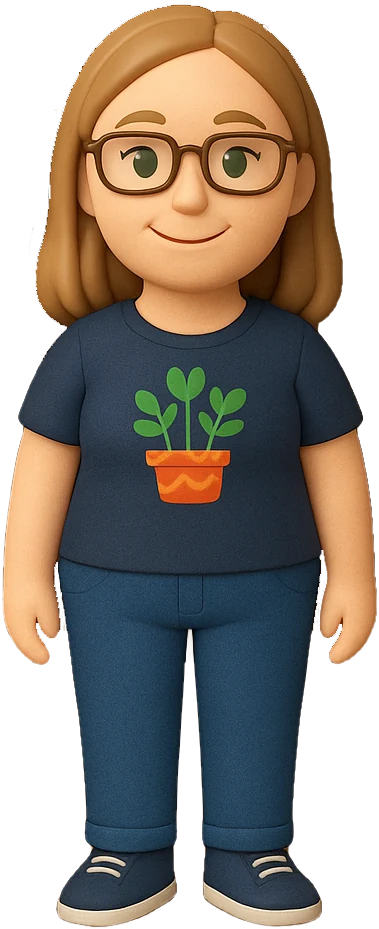
Living portrait
A gentler hello than a static headshot. Move your cursor over the portrait and it shifts in depth with you. When you stop, it settles into a slow sway, and it breathes the whole time.
Made from my action figure
I started with an AI-generated action-figure picture of me, cut the figure out of its packaging, and gave it a world of its own: a soft spotlight and a few of my favorite things floating behind.
Depth from layers
Four flat layers move at different speeds as you move the cursor, so the near ones travel farther than the far ones. Your eye reads that as depth. It stays still for anyone who has reduced motion turned on.
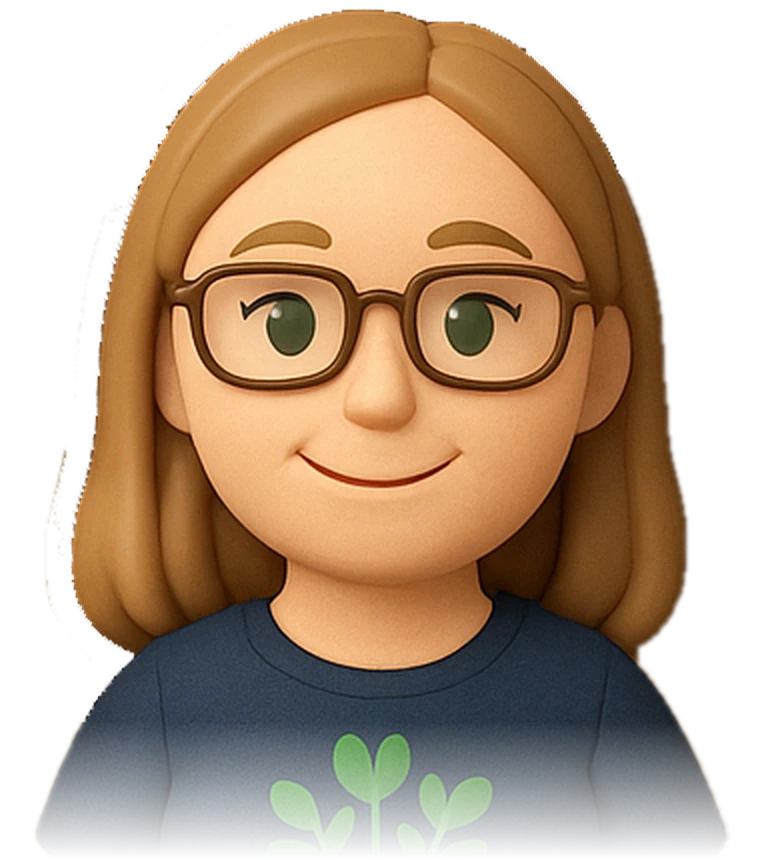
Squish me
Grab my cheeks, hair or chin and pull. My face stretches like dough and wobbles back when you let go. Tap for a little bounce, and watch me lean toward your cursor.
Skin like dough
The portrait is drawn onto a grid of a few thousand points. Each point is tied to its neighbors like a sheet of springs, so a pull spreads, overshoots and settles, like real skin. If WebGL isn’t available, the plain portrait shows instead.
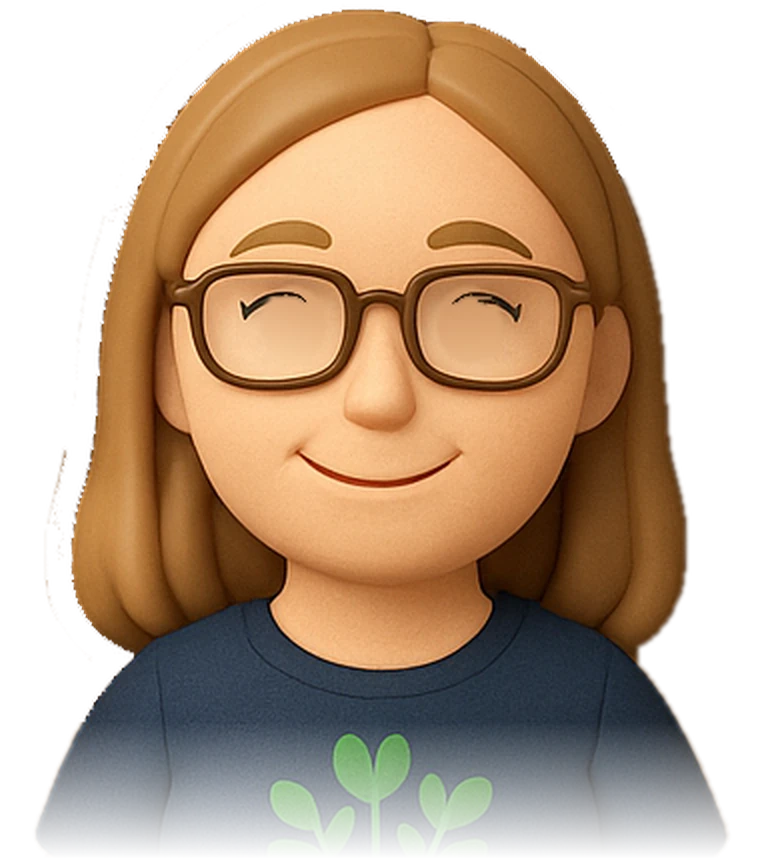


Eyes on you
My eyes follow your cursor anywhere on the page, and I blink every few seconds. Leave me alone for a bit and I’ll start looking around on my own. Can you make me look left, right, up and down?
Lifted eyes
I lifted my irises out of the original picture, filled the spots with matching skin tone, and put them back as separate pieces that slide around under my eyelash lines.
Calm by default
My eyes only wander after you stop moving, and they stay still for anyone who has reduced motion turned on.
Repack me
Everything fell out of my action-figure box. Can you put it all back? Drag each piece into the slot shaped for it. Tapping a piece drops it in for you, and Hint shows you where one goes.
A learning pattern in disguise
Matching a part to the place it belongs is the same skill hardware learners practice when they identify components. The shapes give gentle feedback, so a wrong guess costs nothing.
Built from one picture
I cut all nine pieces out of the original action-figure image, then turned each piece’s outline into a molded slot in the empty box. I also swapped the box’s corner badge for my J.F. monogram.
Fair to everyone
Every piece is a button with a name. Tapping or pressing Enter places it, so nobody has to drag. If you drop a piece in the wrong slot, it tells you which piece that slot is shaped for.
Build the cat tree
With seven cats, I know a thing or two about cat trees. Build this one from the pile of sticker pieces. Order matters: a platform needs a post to sit on, and a cat needs somewhere to sit. When it’s finished, the stickers glue together into one picture.
- Base
- Posts
- Platforms
- Bed and toy
- Cats
Sequencing, made physical
Many procedures have a built-in order: you can’t do step four before step two. Here the order isn’t a rule to memorize, because it follows from how things hold each other up. If you get it wrong, the piece tells you what it’s missing.
Stickers that glue
Each piece has a white sticker edge while it’s loose. Once the last piece is down, the edges melt away, a shine passes over, and the cats come to life.
Drawn for this page
The tree and its three cats are original drawings, built from simple shapes in my site’s colors, so every piece stays crisp at any size and loads instantly.
Exploded laptop
Slide to pull a laptop apart into its layers, then pick any part to see what it does. When you’re ready, take the rebuild challenge and put it back together in the right order.
Drag to turn the laptop. Click a label or a part name to learn about it.
What’s inside?
Drag the Explode slider to lift the laptop apart. Each layer gets a label. Pick one to learn what it does and why it matters in a repair.
See the whole, then the parts
An exploded view shows how parts fit together without hiding the whole. Learners control the pace with the slider, so they can go back and forth between assembled and apart as often as they need.
Rebuilding checks understanding
Naming parts is recall. Putting them back in order shows you understand what sits on what. A wrong pick explains what has to go in first, like a coach would.
How it’s built
Each part is a thin box made of flat CSS panels, stacked in 3D. The slider spreads the stack apart, and the labels turn to face you whichever way the laptop is turned.
The Lab is always open
New experiments show up here as I try them. Have an interaction you’d like to see built, or a course that could use one?
Tell me about it